
Pocket printer guides
Our pocket printer guides help you get started quickly and avoid the common setup mistakes that spoil small photo prints. Use this section to learn how connection, paper choice and simple care all affect the final result.
What this guide section covers
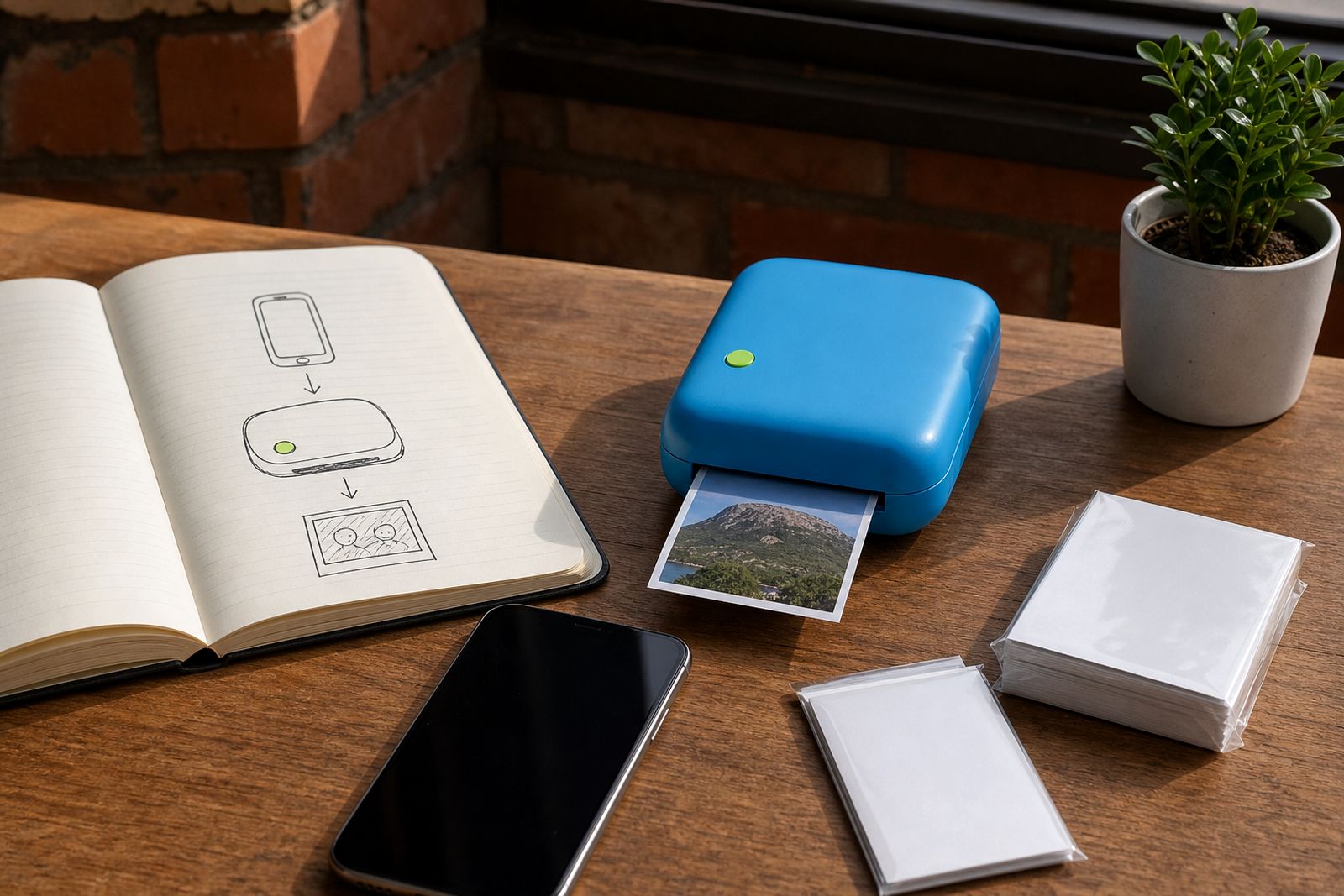
This section brings together the practical basics of using a pocket photo printer with a smartphone. It is aimed at everyday users, families, scrapbookers, teachers and small creatives who want neat prints without a long learning curve. Instead of technical jargon, we focus on the steps that matter in normal use: pairing the printer, loading the right paper, getting better colour and keeping the unit ready for trips, parties and school projects.
If you are choosing your first printer, start with the guides on connecting your phone and getting better prints. Those two topics answer most early questions, especially for customers in Sandton and the wider Johannesburg area who want a compact unit that works properly before a weekend event or family function.
Start with the right printer type
Not every pocket printer works the same way. Some are best for straightforward photo prints, while others are made for labels, journaling and scrapbook use where sticker-backed paper is more useful. A good choice at the start saves paper and frustration later on.
- Choose a photo-focused model if you mainly want wallet-size keepsakes, party snaps and travel photos.
- Choose a sticker-focused model if you decorate journals, school projects, gift bags or event favours.
- Choose based on paper availability if you expect to print often and want one paper type to keep on hand.
- Choose based on who will use it if children, guests or multiple family members will be printing from different phones.
If you are unsure, compare how you will use the prints rather than looking only at the printer body size. A smaller unit is handy, but the paper format and finish usually matter more in daily use.
Connecting your phone without the usual hassle
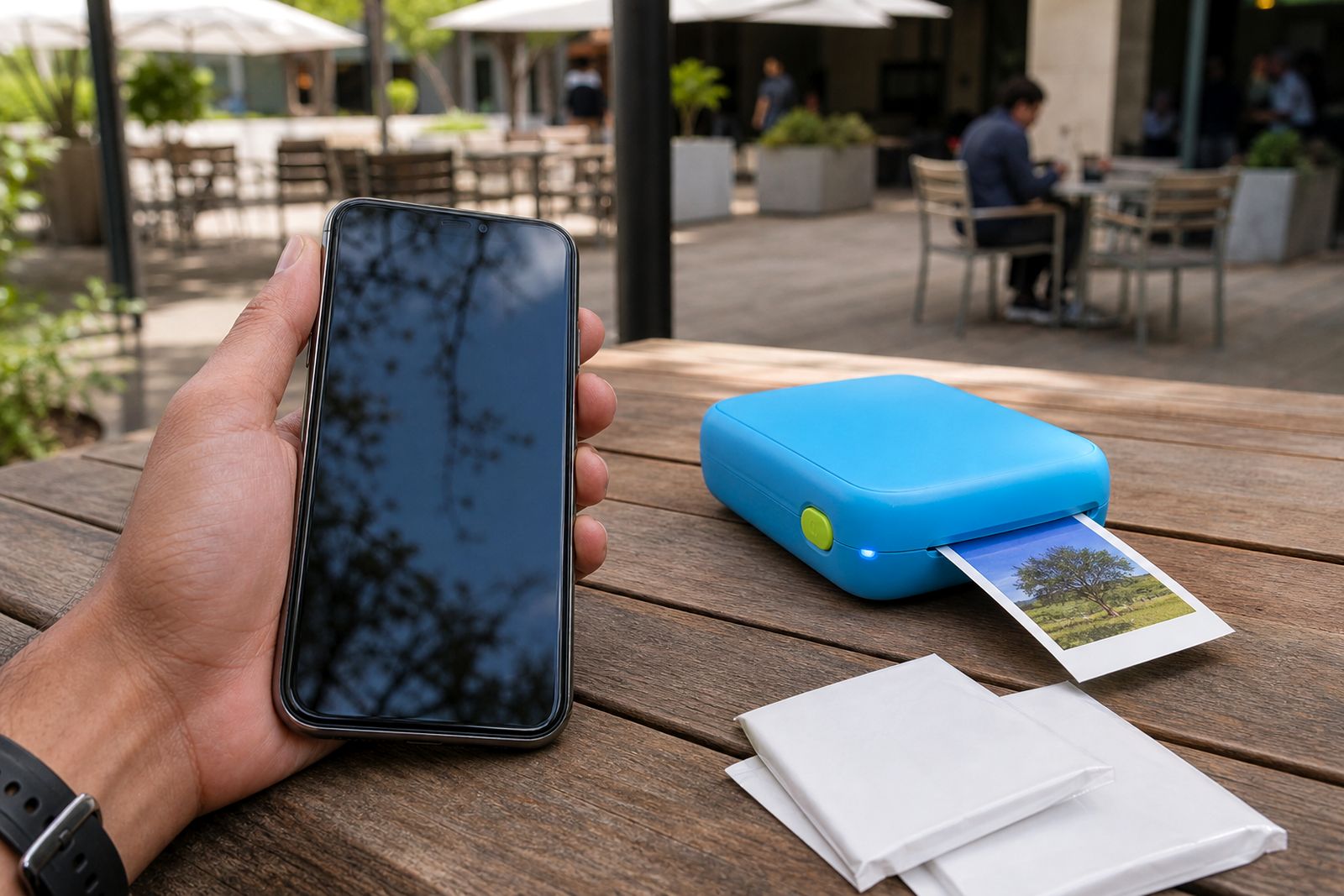
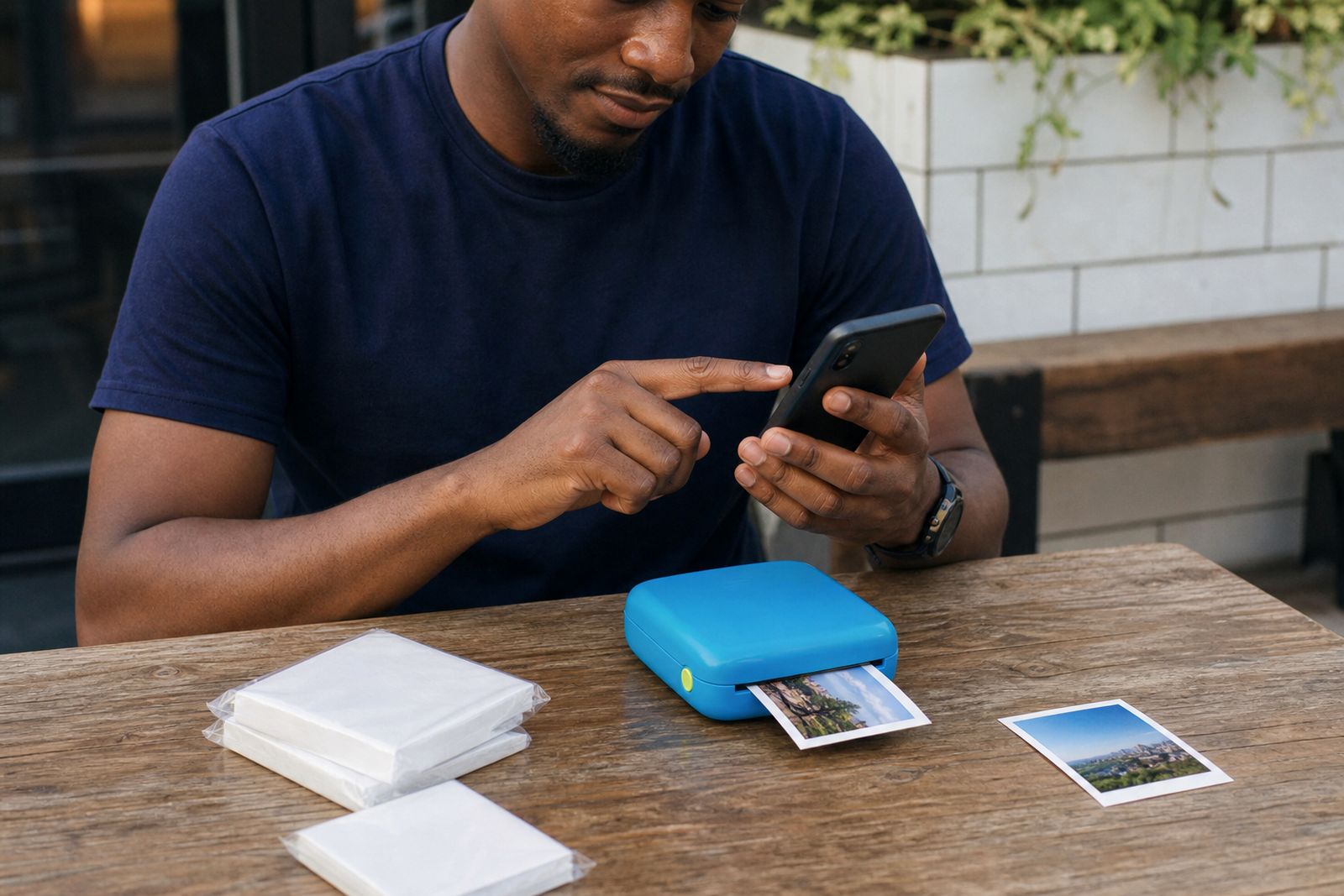
Most pocket printers connect over Bluetooth and use a mobile app to send the image, crop it and start printing. The usual setup is quick, but problems often come from permissions, low battery or an old phone setting left unchanged after an update. In load-shedding periods this can catch people out, especially if both the phone and printer battery are low.
- Charge the printer before first setup, and make sure your phone battery is not about to die.
- Switch on Bluetooth and allow the app to access photos when prompted.
- Keep the printer close to the phone during pairing, preferably on the same table.
- Check that the paper is loaded correctly before sending the first print.
- If pairing fails, close the app, switch Bluetooth off and on again, then retry.
For homes and venues with many active devices nearby, pairing can take a little longer. It helps to connect one phone at a time and finish the first test print before handing the printer around.
Photo paper, sticker paper and ink-free packs compared
Paper choice has a direct effect on print look, handling and storage. Small prints are often used in albums, journals, classroom activities and guest books, so the finish matters as much as the image itself.
- Photo paper suits family pictures, memory books and framed mini prints where a clean photo finish is the goal.
- Sticker paper suits scrapbooks, planners, party favours and labels because the print can be peeled and placed straight onto a surface.
- Ink-free paper packs suit users who want simpler refills and fewer consumable parts to worry about.
- Glossier finishes can make colours pop, but fingerprints may show more easily.
- Matte-style finishes are often easier for journaling and handwritten notes.
In coastal areas, humidity can affect how paper feeds and how finished prints feel straight after printing. Keep unopened packs sealed until needed and avoid leaving loose sheets in a hot car, this small step prevents a lot of feeding trouble.
How to get cleaner, brighter prints
Good small prints start with a good phone image, but they also depend on sensible expectations. Pocket printers are made for convenience and fun, not poster-size output, so the aim is a crisp mini print with pleasing colour and decent skin tones.
Before printing, brighten very dark images slightly, crop carefully and check that faces are not too close to the paper edge. If the app offers simple adjustments, use them lightly. Over-editing often makes a small print look harsher than it did on the phone screen.
- Use clear, well-lit photos rather than heavily zoomed shots.
- Wipe the phone camera lens before events and outings.
- Print one test image if the lighting in the original photos was poor.
- Store printed photos flat for a few moments before placing them in albums or frames.
Teachers and event hosts often find that one short test run saves paper later, especialy when several people are printing from different phones.
Simple care for everyday use
Pocket printers do not need heavy maintenance, but they last better when handled like small electronics rather than tossed loose into a bag with keys and chargers. A case helps during travel, and clean storage helps protect both the printer and the paper.
Keep the unit dry, avoid direct sun on the dashboard and do not force the paper slot if a sheet sits skew. If the printer will be stored for a while, remove loose paper, charge it now and then and keep accessories together so setup is easy when the next birthday, wedding or school project comes up.
If you need help choosing a printer or working out which paper suits your use, send an enquiry through our contact page and we will guide you to the right option.
What our Pocket Photo Printers customers say
Verified Google reviews
Questions we get asked
Can a pocket printer work with more than one smartphone?
Yes. These printers are commonly shared between family members, guests or classmates, but it is best to connect one phone at a time and complete the print before the next person pairs.
What is the difference between photo paper and sticker paper?
Photo paper is meant for standard mini photo prints, while sticker paper has an adhesive backing for scrapbooks, journals, labels and party items.
Do you offer printing services if I send my photos in?
No. We supply pocket photo printers, paper and accessories, and we help customers choose the right setup for printing from their own smartphones.
Tell us about the job
Send sizes, materials and where you are through our contact form, and we will come back with the practical options.
Open the contact form