
Getting better prints
Small photo printers can give surprisingly good results when the image, paper and settings are handled properly. Use this guide to improve colour, sharpness and paper feeding before you print a full pack.
Start with the original photo
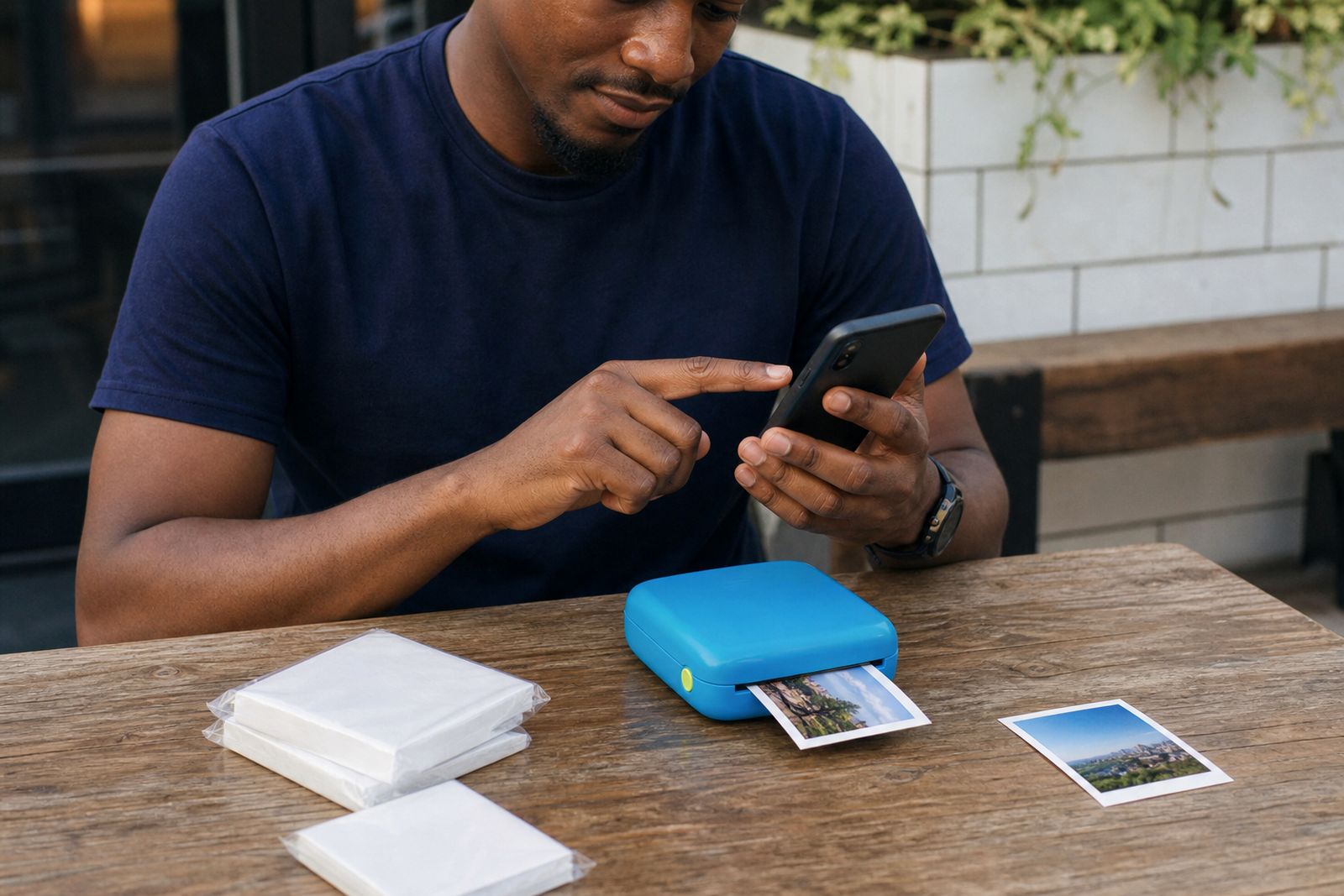
The biggest difference to print quality usually starts long before the printer. A pocket printer can only work with the photo file it receives from your phone, so if the image is dark, blurry or heavily compressed the print will show it. Before sending a photo, zoom in on your screen and check faces, fine lines and background detail.
Photos taken in good natural light usually print better than photos taken in dim rooms. If you are printing pictures from a messaging app or social platform, look for the original image on your phone first. Saved or forwarded copies can lose detail, and that softness often shows up more on paper than it does on a bright screen.
- Choose the original camera image where possible.
- Avoid photos with motion blur, especially at parties and indoor events.
- Check that skin tones look natural on your phone before printing.
- If a photo is very grainy on screen, print another image instead.
Use better light before you take the shot
If you are planning photos specifically for printing, pay attention to light first. Pocket prints are small, so muddy shadows and blown highlights can make details disappear quickly. Soft window light, shaded outdoor light or a bright room with even lighting tends to give the best results.
Harsh midday sun can create shiny foreheads, dark eye sockets and strong contrast that is hard to balance in a small print. At evening functions or during load-shedding, phone cameras often raise brightness too much and add noise. That can make a print look flat or speckled.
- Face the subject toward a window rather than putting the window behind them.
- Step into open shade outdoors for smoother skin tones.
- Clean your phone camera lens before taking photos.
- Hold the phone steady for a moment longer in low light.
- Take two or three versions and compare them before printing.
For group photos, move closer than you think you need to. Tiny faces at the back of a wide shot often look fine on a phone but too small once printed.
Crop for the paper size, not only for the screen
Many disappointing prints come from cropping that suits the phone screen but not the paper shape. Pocket printers use small fixed media sizes, so the app may trim the top, bottom or edges of a photo to make it fit. If you place important details right against the edge, they may be cut off.
Before printing, use the preview and look carefully at all four edges. Leave a bit of breathing space around faces, hands, text on signs and decorative details. This matters even more for wedding guest books, scrapbook layouts and classroom projects where neat framing counts.
If your photo includes straight lines such as tables, walls or horizon lines, level them before printing. A slight tilt may feel minor on a phone but can stand out on a small print. It also helps to brighten shadows gently rather than pushing contrast too hard, becuase excessive editing can remove detail.
- Keep eyes and faces away from the trim edge.
- Use the print preview every time, even for repeat prints.
- Check whether borders are turned on or off.
- For sticker prints, leave room if you plan to cut around the image.
Handle paper carefully
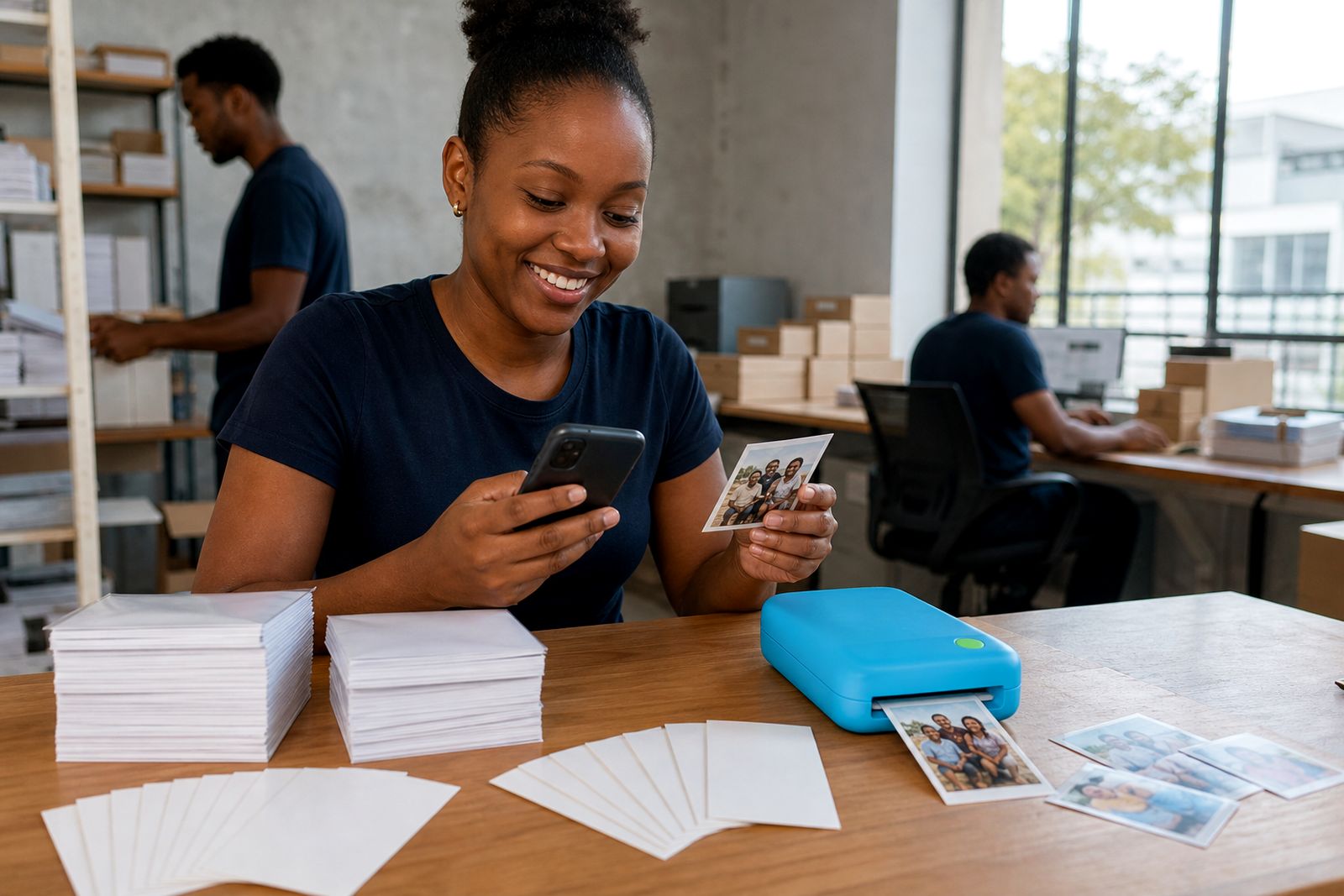
Paper makes a real difference to the final result. Pocket photo paper, sticker paper and ink-free paper packs each have a correct loading direction and printable side. Touching the print surface too much can leave marks, especially in warm weather or if your hands have hand cream, dust or snack oil on them.
In Gauteng's dry months static can make sheets cling together, while in coastal areas humidity can make paper curl slightly. Keep paper in its packet until you need it and store it flat away from direct sun, steam and car heat. Do not force sheets into the tray if they are not sitting square.
- Load the correct paper type for the printer model you are using.
- Check the printable side before closing the tray.
- Store unused sheets flat in a cool, dry cupboard.
- Do not bend, crease or peel layers unless the instructions call for it.
- Feed one paper type at a time rather than mixing sheets.
If a sheet has picked up dust or lint, set it aside. Small particles can show up as marks or interfere with feeding.
Print settings and phone connection checks
If colour or sharpness looks inconsistent, check the basics in the app and your phone connection. A weak Bluetooth link or an interrupted transfer can sometimes lead to failed prints or partial jobs. Keep the printer close to the phone while printing and avoid switching between multiple apps during transfer.
Make sure the image is printing at the app's highest available quality setting if that option is shown. Some apps also let you switch filters, borders, collage layouts or beauty effects on and off. Extra effects may look fun for one print, but they can also shift colour or reduce detail.
- Turn off strong filters if you want natural colour.
- Check battery charge on both the printer and phone.
- Close background apps if the phone is lagging.
- Reconnect the printer if the preview freezes.
- Run a single test print before printing a batch.
If you are printing several copies for party favours or classroom use, compare the first print with your screen before carrying on. A quick check can save paper.
A quick checklist before every print
When you are in a hurry, a short routine helps a lot. Whether you are printing snapshots at a birthday in Sandton, making labels for a journal, or adding instant photos to an album at home, these checks improve consistency.
- Pick a clear photo with good light.
- Clean the phone lens if you are still taking pictures.
- Crop with space around the subject.
- Confirm the right paper type and loading direction.
- Check preview, border and filter settings.
- Keep the printer on a flat surface while it feeds.
- Let the print finish fully before handling it.
If your results still do not look right after these steps, try a different photo first. If the issue continues across several images and paper sheets, send us a message through the enquiry form on our contact page and we can help you check setup, connection and paper choice.
What our Pocket Photo Printers customers say
Verified Google reviews
Questions we get asked
Why does my print look darker than my phone screen?
Phone screens are backlit and often set quite bright, so images can look lighter on screen than on paper. Lower your screen brightness a bit when checking the photo, then raise shadows gently and avoid very dark indoor shots.
Can I use ordinary photo paper in a pocket printer?
No. Pocket printers need the correct media made for that printer type, whether that is photo paper, sticker paper or ink-free paper. Using the wrong paper can cause poor results or feeding problems.
What is the best way to avoid cut off faces?
Use the print preview and keep faces, hands and text away from the edges of the frame. It helps to crop a little wider than you would for social media so the printer has room to fit the image to the paper.
Also worth a look
Tell us about the job
Send sizes, materials and where you are through our contact form, and we will come back with the practical options.
Open the contact form