
Connecting your phone
Getting a pocket photo printer connected to your phone is usually quick once the basics are in place. This guide covers the Bluetooth pairing steps, app setup and a few simple checks if the printer does not appear straight away.
Before You Start
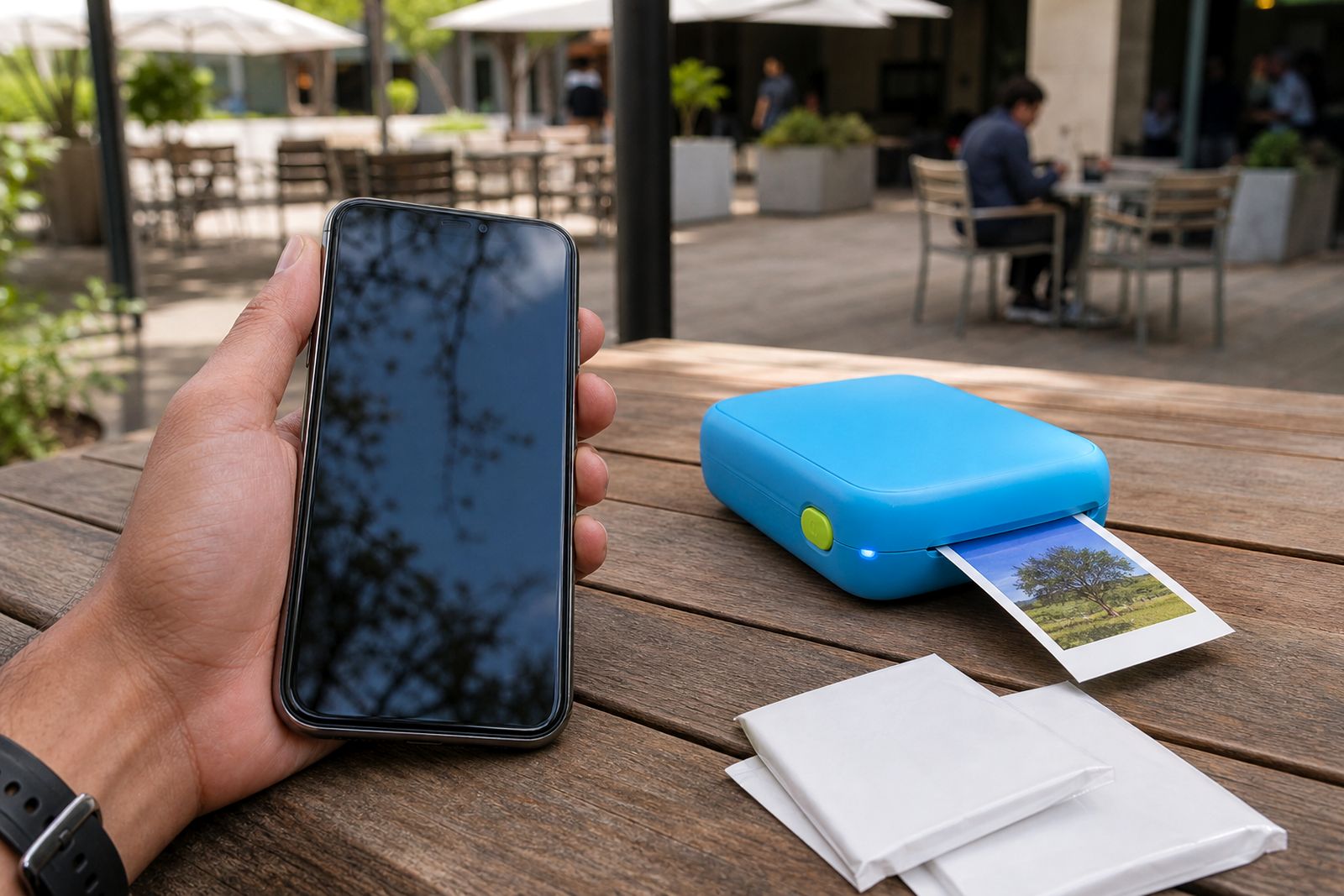
Most connection issues come from one of three things: low battery, Bluetooth not fully enabled, or the app permissions being skipped during setup. Before pairing, place the printer on a stable surface, charge it if needed and keep your phone close by, ideally within a metre or two for the first connection. If you are trying this during load-shedding, make sure both devices have enough charge to complete setup and a test print.
You will also want the correct paper loaded properly. A printer may switch on and pair, but it can still fail at the print stage if the paper pack is inserted the wrong way round or the cover is not closed fully. This catches people out often.
- Charge the printer and your phone.
- Switch Bluetooth on in your phone settings.
- Install the correct printing app for your printer type.
- Allow Bluetooth and photo access when prompted.
- Load compatible photo or sticker paper correctly.
- Keep the printer nearby for first pairing.
Check Your Phone Settings First
Different phones handle Bluetooth permissions slightly differently, but the same basic rules apply. Bluetooth must be on, and the printing app must have permission to use it. On many phones, the app will also need access to photos so you can select images from your gallery. If your phone asks for nearby device permission, allow that too.
It also helps to switch off battery saving for the app while you set things up. Some phones restrict background Bluetooth activity when battery saving is active, which can interrupt the first handshake between phone and printer. If your WiFi is on, that is fine, but the actual printer link is normally over Bluetooth unless your model uses a direct app connection with a similar pairing flow.
- Open your phone settings and confirm Bluetooth is active.
- Check that aeroplane mode is off.
- Confirm the printing app can access Bluetooth and photos.
- Turn off aggressive battery saving for the app during setup.
- Close any other printing apps that may try to connect first.
Pair the Printer Over Bluetooth
Switch the printer on and wait for it to enter pairing mode. On most pocket photo printers, an indicator light will blink or change colour to show it is ready. Open Bluetooth settings on your phone and look for the printer in the list of available devices. Tap the device name, then confirm pairing if your phone asks. Some models pair inside the app rather than from the main Bluetooth menu, so if you do not see the printer straight away, open the app and use the add printer option there.
If your phone says the printer is paired but the app does not show it, do not panic. This usually means the app needs to complete its own linking step. Open the app, go to device connection and select the printer from the available list. Stay close to the printer until the app confirms it is ready.
If the device name appears more than once, choose the active one and ignore older saved connections. People sometimes try the same setup a few times and end up with duplicate entries which can confuse the phone a bit.
Set Up the App and Print a Test Photo
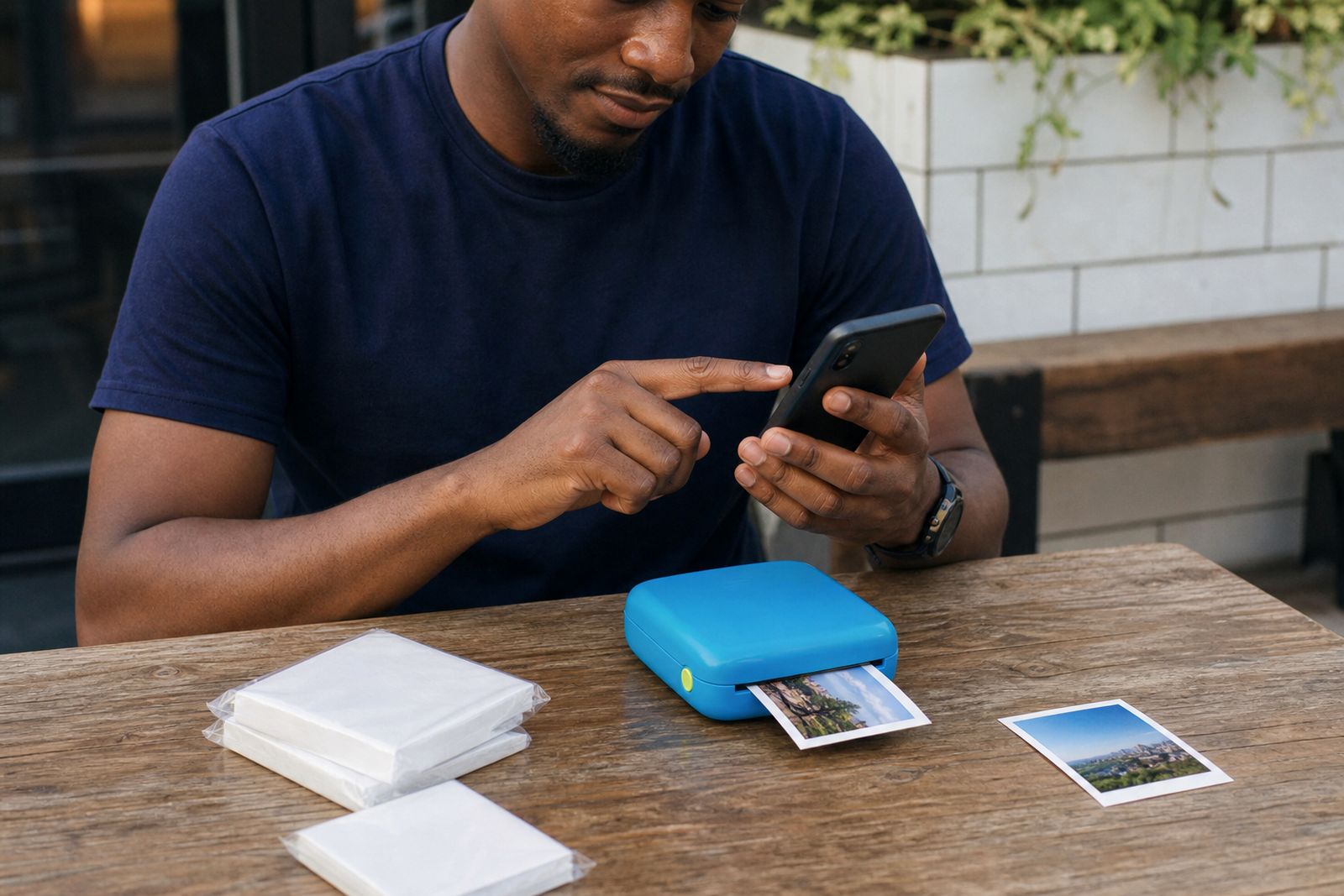
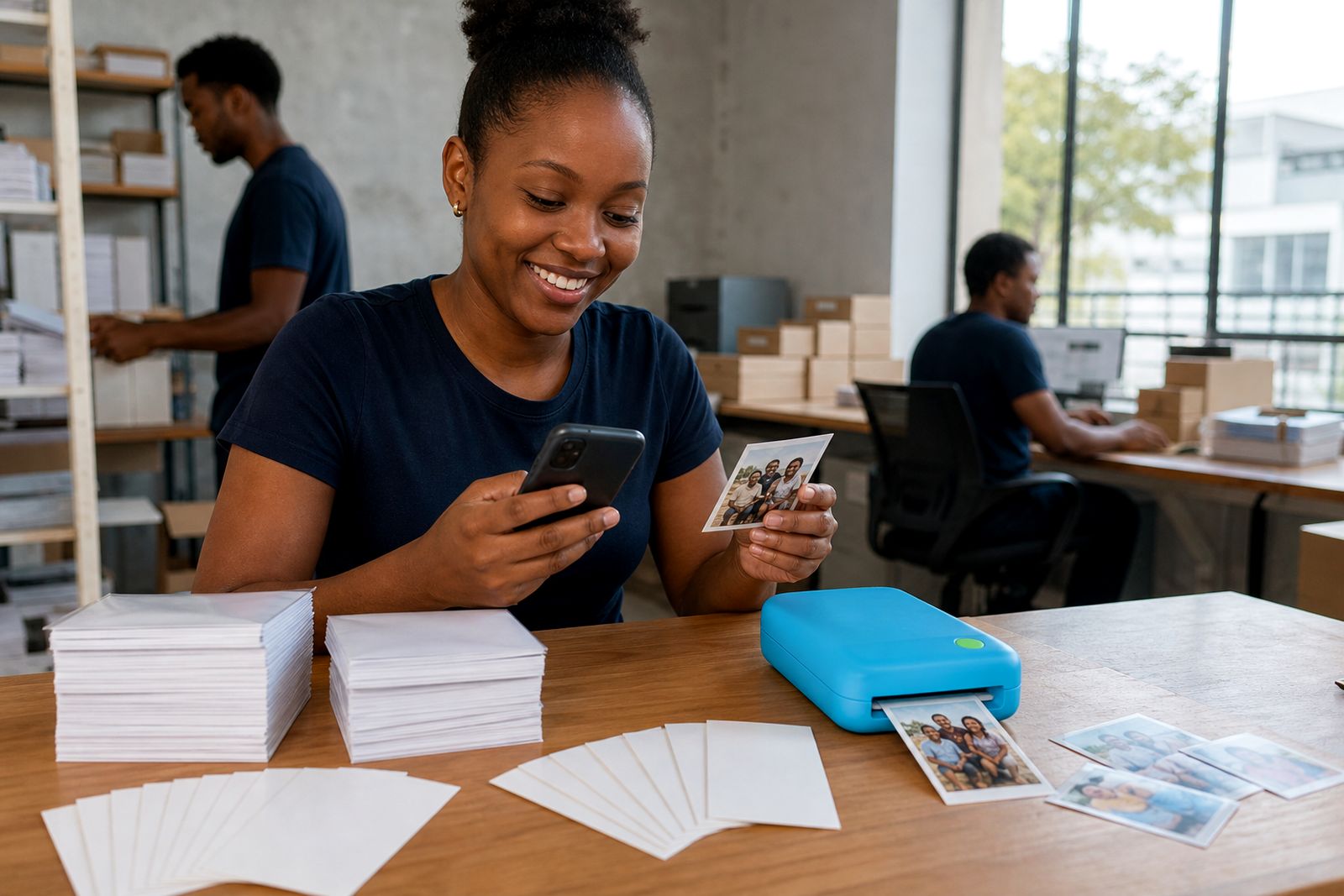
Once the printer is linked, open the app and select a photo from your gallery. Most apps let you crop, brighten, add a border or choose whether you want a plain photo print or a sticker print. Keep your first test simple. Use a clear photo with good light and avoid heavy edits until you know the printer is feeding and aligning properly.
Before printing, check the paper type selected in the app if that option is available. Choosing the wrong media setting can affect colour, print alignment or whether the printer expects sticker stock rather than standard photo stock. Then send one print only and wait for it to finish completely before trying another.
- Open the app and choose a single photo.
- Crop the image to suit the paper size.
- Confirm the media type if your app includes that setting.
- Send one test print first.
- Check colour, sharpness and alignment before printing a batch.
If the print looks too dark, try a brighter image or lift the exposure slightly in your gallery editor. Indoor photos from parties, classrooms and wedding venues often need a little adjustment before they print neatly on small paper.
If the Printer Will Not Connect
When a printer does not appear, the fix is usually simple. Start by switching the printer off and on again, then close and reopen the app. If that does not work, forget the device in your phone Bluetooth menu and pair it from scratch. Make sure the printer is not already trying to connect to another phone nearby, especially at events where several people want to print from the same table.
Bluetooth can also be affected by distance, low battery and a crowded wireless environment. In busy venues around Johannesburg, or in classrooms and halls where many devices are active at once, move closer and try again. A fully charged printer is less likely to drop the connection halfway through setup.
- Restart the printer.
- Close and reopen the app.
- Forget the saved Bluetooth device and pair again.
- Move the phone closer to the printer.
- Check that no other phone is connected first.
- Recharge the printer if the battery is low.
If you are still stuck after these checks, send us a message through the enquiry form on our contact page and we can help you work through the setup steps.
Simple Habits for Easier Printing
After the first successful connection, future printing is usually much quicker. Keep the app installed, leave Bluetooth enabled when you want to print and store your paper in a dry place. This matters in coastal humidity where paper can curl slightly if left open too long, and curled sheets are more likely to feed poorly in compact printers.
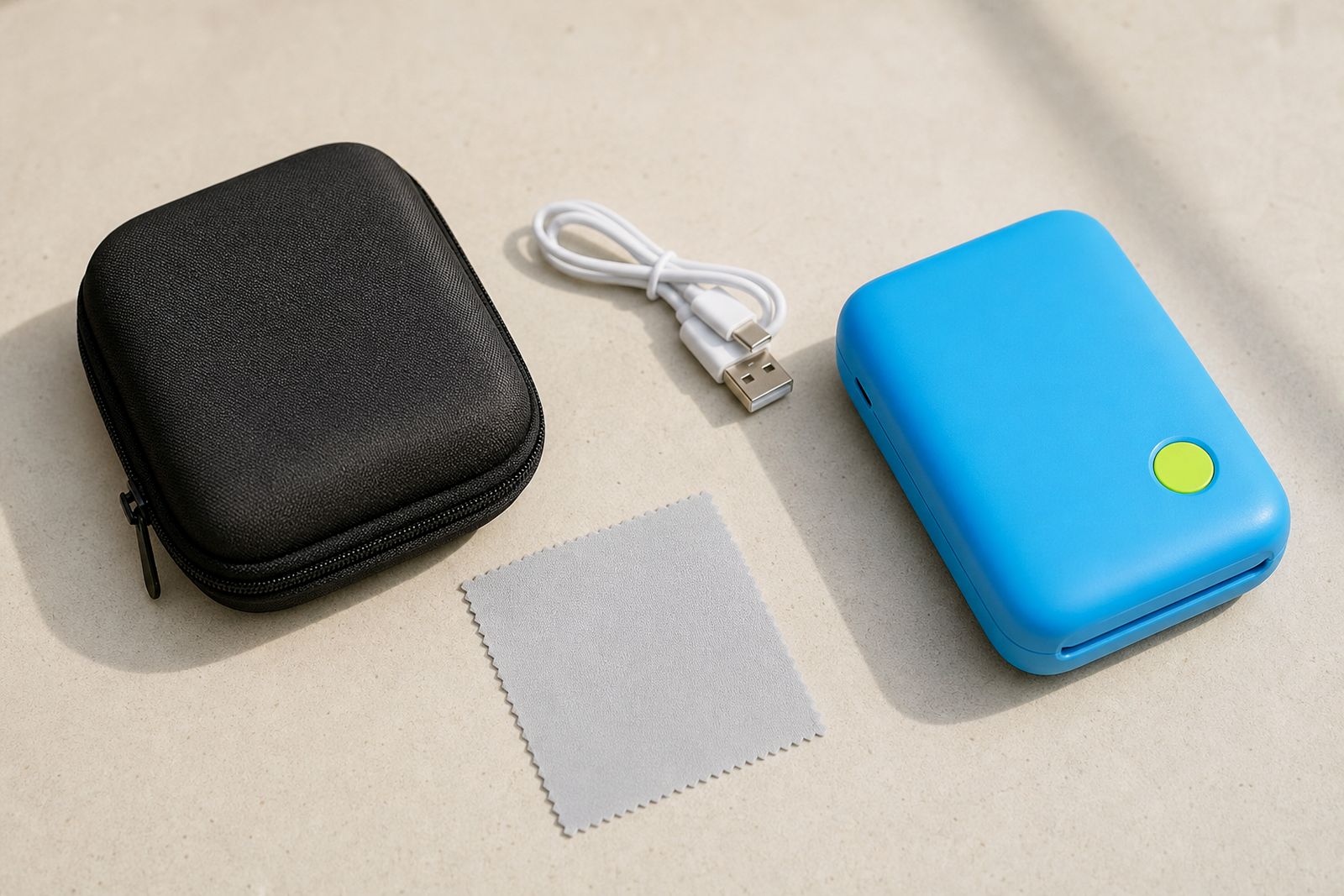
It also helps to keep one paper type in the printer at a time rather than swapping constantly between photo and sticker packs. If you do change media, remove any loose sheets neatly and reload the new pack squarely. Wipe the outside of the printer with a dry cloth only and avoid stuffing it into a bag without a case, as lint and dust can get into the paper path.
For weddings, parties and scrapbook sessions, connect and test the printer before guests arrive. That small step saves time later, and it means you can focus on printing memories instead of sorting out settings on the spot.
What our Pocket Photo Printers customers say
Verified Google reviews
Questions we get asked
Why is my phone paired but the app still cannot find the printer?
This usually means the phone completed Bluetooth pairing, but the app still needs its own device selection step. Open the app, go to the printer connection section and choose the paired printer from the list.
Do I need internet access to print from my phone?
In most cases, no. The printer normally connects over Bluetooth or through the app directly. You may need internet only when downloading the app or updating it.
Can more than one phone use the same pocket printer?
Yes, but it works best if one phone disconnects before the next phone tries to pair. At events, connect one device at a time to avoid mix-ups and failed print jobs.
Also worth a look
Tell us about the job
Send sizes, materials and where you are through our contact form, and we will come back with the practical options.
Open the contact form